

NotebookLM 101, Part 6
Infographic and Slide Generation Featuring Nano Banana

In my experience as a frequent speaker, presenter, and teacher, the hardest part of making a presentation (or any informative graphic, for that matter) isn’t knowing your content. It’s getting a good, productive start.
You’ve done the research work. You have the sources. You know what you want to say. But there’s something about a blank slide that makes the whole thing feel like it will consume your entire Sunday. The cursor blinks. You decide to check email instead.
NotebookLM’s Studio has an answer. Two, actually: infographics and slides. Both start from your sources, not from nothing. Both eliminate that blank-slide paralysis by giving you a structured first draft to react to instead of an empty canvas to fill.
Infographics: One Visual That Does the Work
Sometimes you don’t need a full deck. You need one image: something that captures a complex idea, shows a process, or gives students a reference they can actually look at while they work.
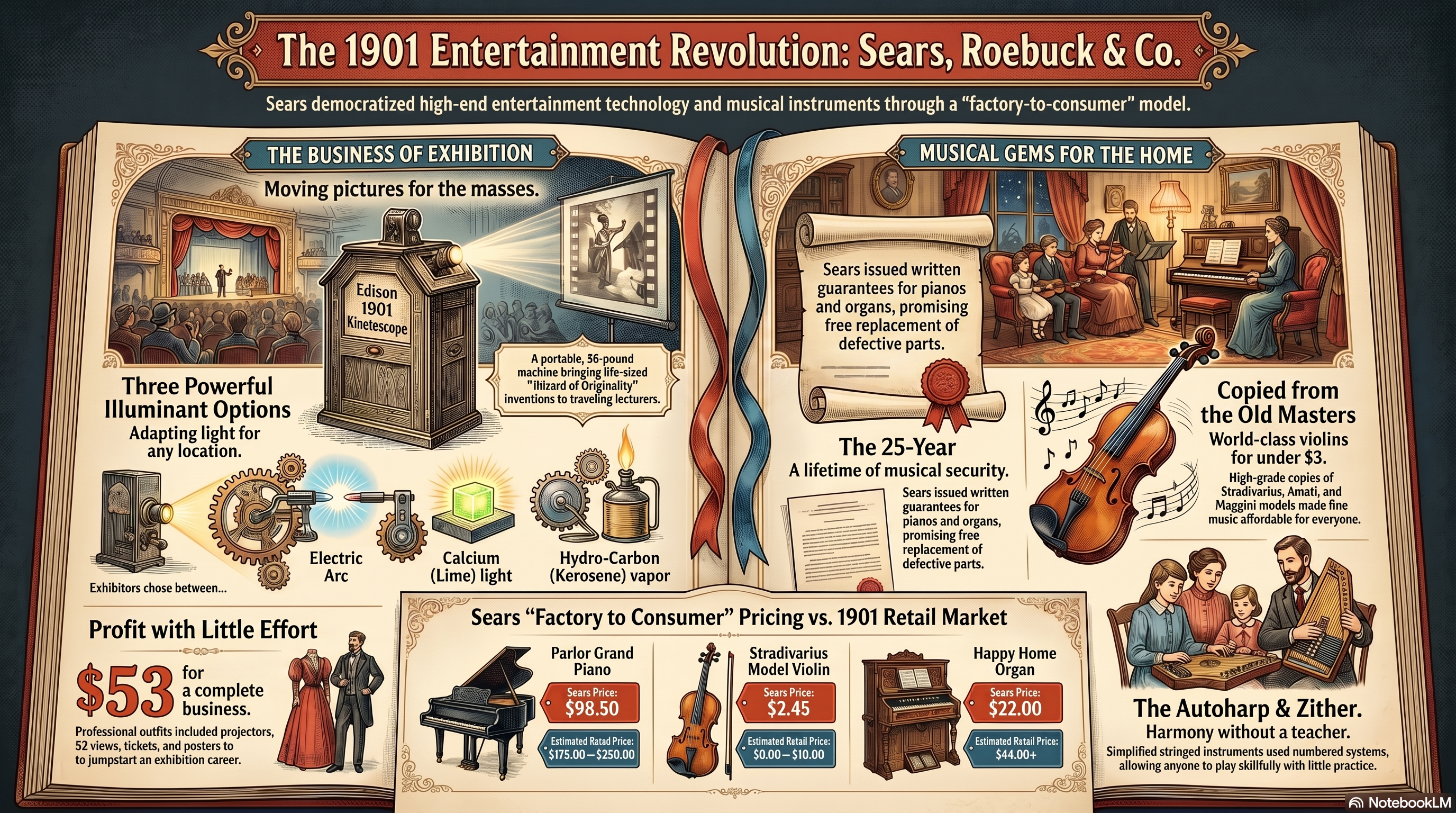
The infographic generator takes your sources and produces a single visual. Ask it to work, or nudge it with a prompt. I tested it with my Sears and Roebuck 1901 catalog notebook. Let it loose, and it focused on entertainment and musical instruments, drawing inspiration from the catalog’s own aesthetic.
Then I asked for “men’s clothing of the time, black and white only, fashioned like a mood board.” Different prompt. Completely different (better, perhaps?) result.
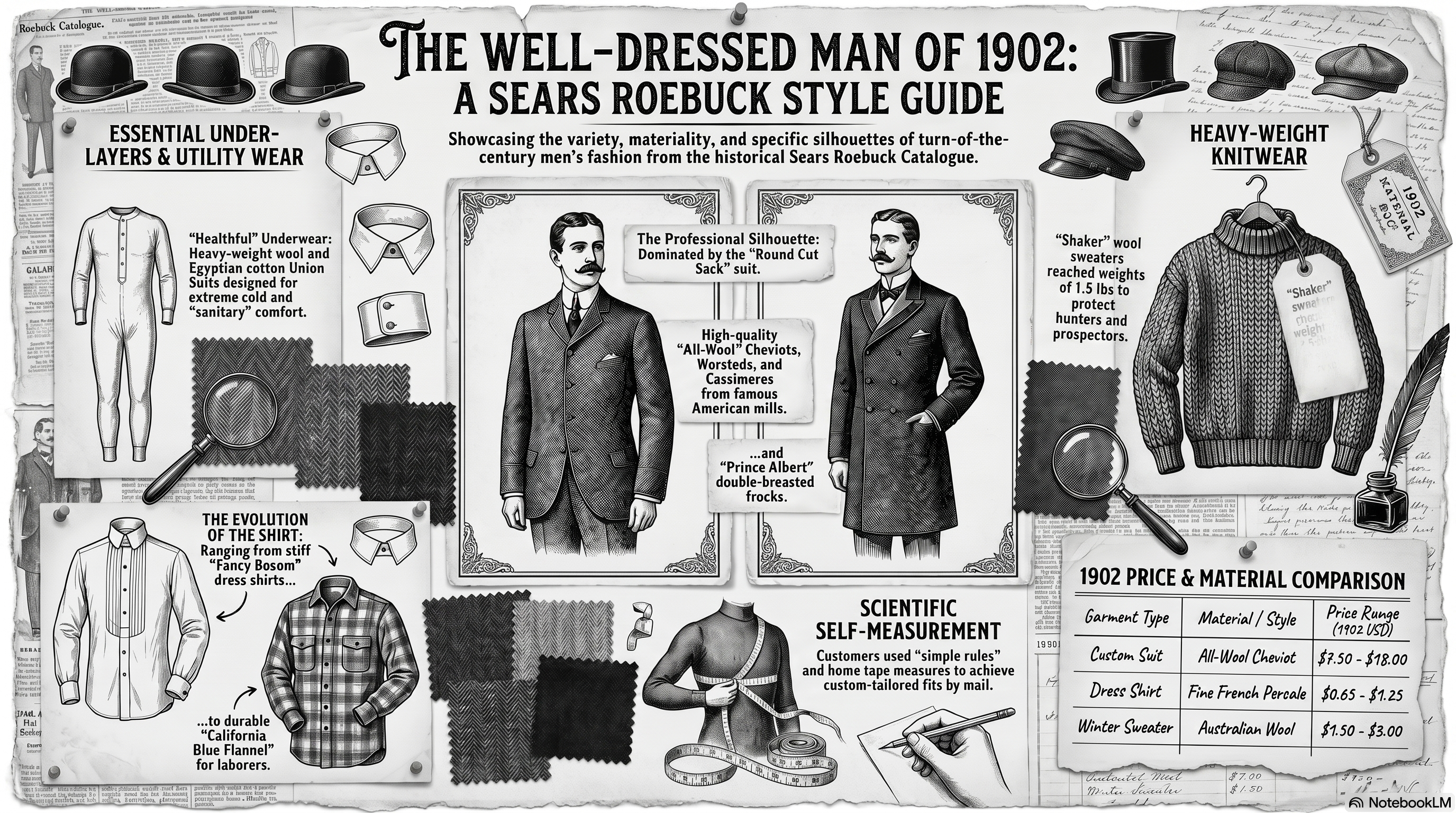
The design quality varies depending on what you ask for. Better prompts get better results.
Practical uses for educators:
Concept anchors and vocabulary walls: A printable visual that answers the question before students ask it. Post it. Reference it. Done.
Process explanations: Lab safety steps, a multi-stage writing process, a historical cause-and-effect chain. One image instead of three slides and a handout.
Scaffolded reference sheets: A simplified visual summary of complex content for students who need an additional entry point.
Like any image generation tool, you’re relying on the model to do what you ask and avoid hallucinating extra material. This got dramatically better when Google released its “Nano Banana” models in 2025. Earlier versions struggled. Current models mostly do not struggle, even with complex passages and prompts.
Slides: From Sources to Structure in Minutes
When you generate a slide deck in NotebookLM, the system reads your sources and builds a presentation around the key ideas it finds. Organized. Titled. Ready to edit (which means prompting individual slides with suggestions).
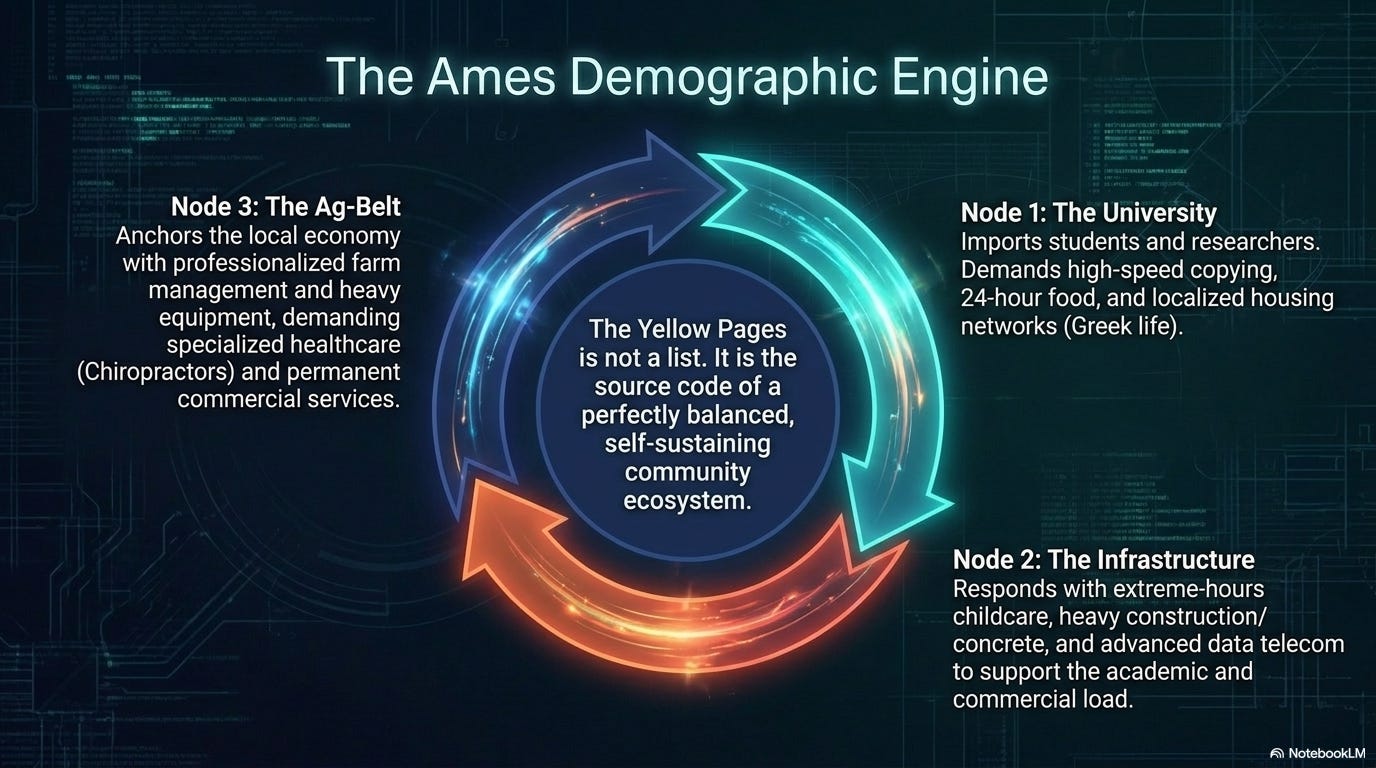
I ran it through the 1989 Ames, Iowa phonebook Notebook. Six hundred pages of names and phone numbers. What came back was a structured presentation on the economic and civic landscape of a mid-sized Midwestern city: sections on industry, residential patterns, local services. The system found a narrative arc in what looked like random data. Here’s an example.
For educators, the use cases are immediate:
The Unit Overview Deck: Upload your standards, a textbook chapter, and your primary sources. Generate a slide deck as a structural starting point. You spend your time refining instead of building from scratch.
The PD Presentation: Have instructional research to share with your team? Upload the literature. You get a presentation grounded in actual sources, not what you remember reading three years ago.
The Parent Night Deck: Upload your course documents. Let NotebookLM handle the logistics. You handle the stories.
One massive caveat. I’m a slide snob and a longtime student of Garr Reynolds’s Presentation Zen. I don’t want complicated slides with a ton of information because they draw the listener's attention away from the presentation. I’m unlikely to use this in the way I’m suggesting below (”The 70% Rule”). But that hang-up is mine, not yours. If you’re staring down a unit deck due tomorrow, a solid 70% draft beats a blank screen every time.
There are a few ways around this if my pickiness is contagious.
First, presenter slides. One advanced option is to generate presenter-style slides: sparse on-screen text, with supporting details pushed into the speaker notes rather than the slide itself. That keeps the audience looking at you, not reading past you. This is a good example:

Second, better prompting. As has been established over and over again, developing skills of output snobbery and iteration is really the way to get what you want when using AI as “co-intelligence.”
Lastly, use the slide-generation output as fodder for your larger presentation, but keep the design yourself. Our Lab team does this frequently. We use the slide deck generator more or less as a “multiple infographic” generator, and then pull the image into a slide presentation.
The 70% Rule
Let’s be honest. The slides and infographics NotebookLM generates are functional, not fancy (although they always appear very impressive on initial view). They won’t replace a presentation you’ve spent three years refining in your classroom.
A solid 70% that exists on Thursday is worth more than a perfect score that would have taken until Sunday.
Treat the output as a working draft. Edit the titles. Reorder the sections. Add your own examples. Swap out images. Start there. Do not start at zero. The difference between editing something and starting from scratch is bigger than it sounds. Editing is fast. Starting is hard.
Or lean into the slide output as an assistant to create a few interesting infographics for your presentation. Remember, you can absolutely prompt a design or style to fit an existing preferred slideshow theme.
That’s a Wrap on NotebookLM 101
Six parts. Here’s what we’ve built:
Part 1 and 2 taught you to build notebooks and ask good questions. Part 3 showed you the Studio’s mind maps and study guides. Part 4 provided audio overviews for professional development on the go. Part 5 introduced video overviews for moving documents. This one: the visual layer.
If you’ve been experimenting with each, you have a genuinely different toolkit from the one you had six posts ago. If so, mission accomplished!
Next up: the Advanced NotebookLMology series. We’ll go deeper into sophisticated prompting strategies, real classroom and district workflows, and how to build NotebookLM into your actual teaching practice instead of treating it as a novelty you tried once. Our team has built some genuinely useful things with NotebookLM, and we’re looking forward to sharing them.
Stay tuned.
Your Turn
Pick one presentation you’re building this month. Upload your source materials and generate a slide deck. See how much of the structure you actually keep. My guess: more than you expect.
Have questions or want a walkthrough? The FLL AI Help Desk is here. That’s what it’s for!