
New Custom Tool: AltText Artisan from the Frontier Learning Lab
Better Image Descriptions Without Starting From Scratch


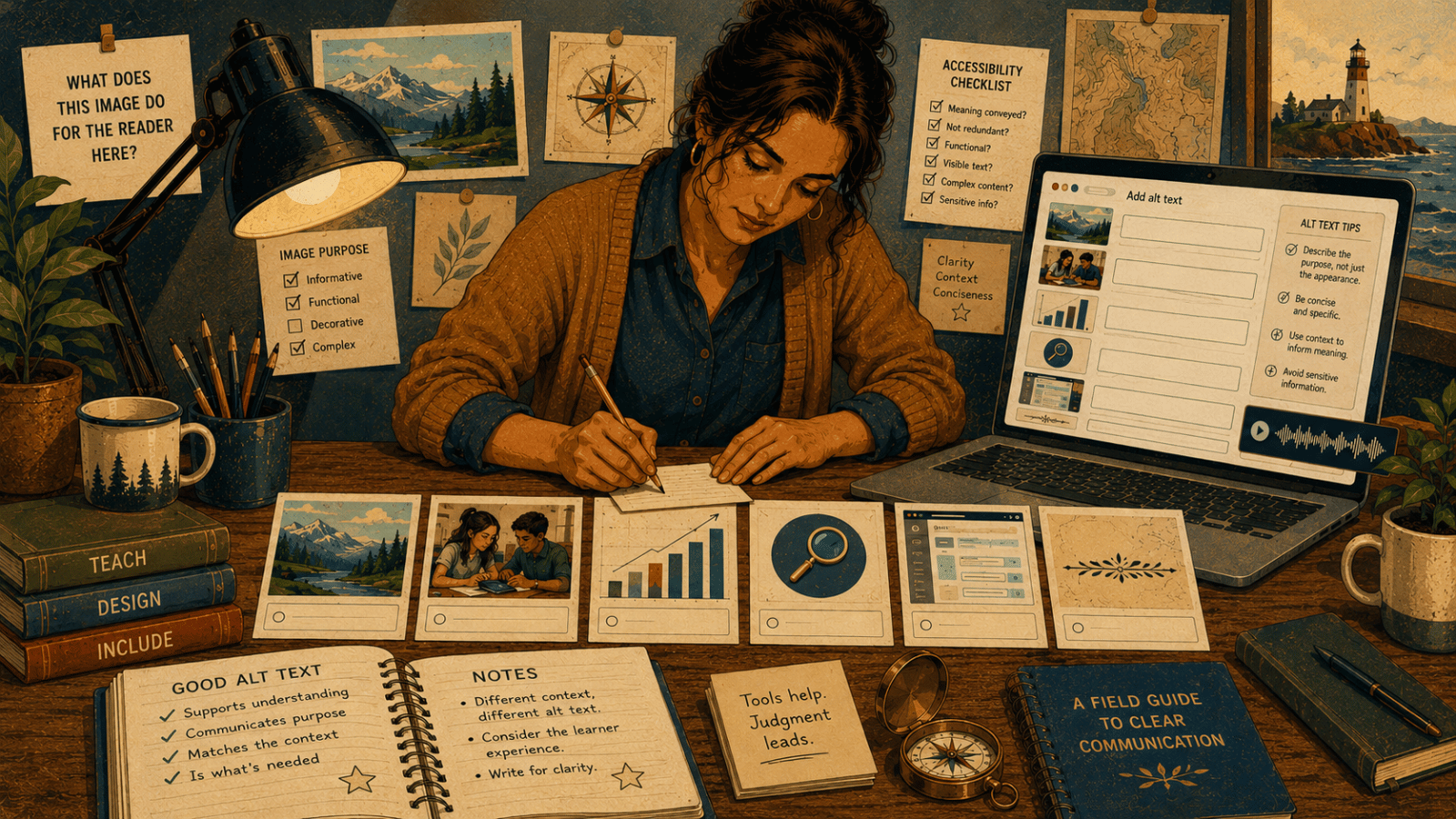
Today, we are widely releasing our custom-built tool, AltText Artisan, as both a Google Gem and a ChatGPT Custom GPT. It has one specific task: to create detailed analysis and alt text for web-based images on demand.
We built AltText Artisan to solve a specific headache for our own course developers at Montana Digital Academy. It worked well enough that we wanted to put it in your hands, too. As of today, it runs as a Google Gem and a ChatGPT Custom GPT, with one job: to analyze a web image and draft useful alt text on demand.
One caveat. AI is good at describing what is in an image and bad at knowing why it is there. It will confidently over-describe a decorative flourish, miss the cultural weight of a photo, or flatten a complex chart into a single tidy sentence. That judgment is the part you cannot hand off. AltText Artisan drafts. You decide. #HumanInTheLoop
A small tool for one of the most overlooked parts of digital accessibility
Every digital course, newsletter, website, and slide deck designer eventually runs into the same deceptively small question.
What should I put in the alt text field?
It looks like a simple metadata task. A box appears in the publishing tool. Someone types a sentence, the checker stops complaining, and everyone moves on.
Good alt text is a writing and learning decision. Treat it as a box to clear during QA, and it goes wrong.
The same image might need different alt text depending on where it appears. A photo of students gathered around a table could mean “collaboration” in one lesson, “small-group protocol” in another, and nothing at all if the surrounding text already says everything the image contributes. A chart might need a short summary in the alt field and a longer description nearby. A decorative divider might need no spoken description at all, but it still needs to be coded intentionally so assistive technology can skip it.
That is the gap AltText Artisan is designed to fill.
AltText Artisan is a custom AI assistant that helps authors, educators, designers, and content teams draft accessible alternative text and long descriptions for images. The tool helps you apply your judgment consistently. The author still owns the final call.
At its best, alt text answers a practical question: What does this image do for the reader here? AltText Artisan starts there.
You’re Already a Digital Publisher
Digital accessibility has always mattered. What has changed is who it applies to.
Many quietly assume accessibility is a problem for virtual schools and course designers, the people who build things online for a living. It is not. If you teach in a brick-and-mortar classroom, you publish digital content constantly: the Google Classroom page, the slide deck in third period, the PDF worksheet on Canvas, the photo on your class website, the newsletter home to families. You are a digital publisher. You just do not carry the title.
The law sees it that way, too. The U.S. Department of Justice’s 2024 Title II rule requires state and local governments, public school districts included, to meet WCAG 2.1 Level AA. In 2026, the DOJ extended those dates by a year, so depending on your district’s size, the deadline is now April 2027 or 2028. Useful to know. But the deadline is just the floor.
My friend and colleague Dr. Nicole L’Etoile does excellent advocacy work here. Read her piece, Why Accessibility in K-12 Digital Infrastructure Matters. She walks through web accessibility as a foundation of good learning design, not a checkbox.
The real reason is the student three desks back. The one running your assignment document through text-to-speech who hits a scanned image with no text underneath it. The one using read-aloud who reaches a chart that was never described. When an image carries instructional meaning, and no one writes alt text for it, that student gets noise where everyone else gets signal.
If you already believe in designing for the range of learners in your room (and most teachers do), this is simply that belief applied to the images you post. Alt text is a small, concrete piece of universal design. Treated as a legal box to check, it gets done poorly. Treated as communication, it is a mix of art and science most of us were never trained in. That gap is what this tool closes.
The Core Idea: Function Before Description
As you create content for screen consumption, you begin by asking a direct question.
“Why is the image here?”
That question changes the approach. The Web Accessibility Initiative’s image guidance separates images by purpose: informative, decorative, functional, images of text, complex images, groups, and image maps. That taxonomy is useful because different image types require different author decisions.
AltText Artisan turns that guidance into a repeatable workflow. It asks for the context and identifies the likely image type. It then applies the relevant rule to the draft output, which a human can review before publishing.
What AltText Artisan Does
AltText Artisan is built for the images educators present to learners, from a teacher’s projected and shared slide deck to a full online course module. It can analyze all sorts of visual materials, from photos and illustrations to logos, charts, and maps.
It goes beyond labeling objects. It aims for alt text that is concise, contextual, and useful. That means it might describe the action of a button instead of the shape of its icon. The tool can also recommend empty alt text for a decorative flourish or draft a short label alongside a long description for a complex chart. It will even flag privacy concerns when a photo includes students, names, IDs, or other identifying details.
The output is meant to be highly usable, but as with everything else in the AI space, you remain the human in the loop. You still have to review it.
The Workflow
AltText Artisan works best when the author provides a small amount of context. Even one sentence helps. The useful inputs are:
Context: What is the page, lesson, or post trying to communicate?
Image type: Is this a photo, chart, screenshot, icon, map, logo or infographic?
Visible text: Does the image contain words the reader needs?
Focus: What should the reader take away from the image?
Privacy notes: Are there names, minors, IDs, faces, locations, or other sensitive details to avoid?
Placement: Is the image a link, button, heading visual, cover image, example, or decoration?
Then the tool applies a decision sequence:
1. Is the Image Functional?
If the image is a link, button, or control, the alt text should describe the action or destination. A magnifying glass icon used as a button does not need alt text that says “Magnifying glass.” It needs “Search” or “Search the site.” The user does not need an art critique of the icon. They need to know what will happen if they activate it.
2. Is the Image Decorative or Redundant?
If an image adds no information, or if nearby text already provides the same information, the correct choice may be empty alt text (alt=""). This is one of the most misunderstood parts of alt text. Empty alt communicates that the image can be skipped. Missing alt can cause assistive technology to announce a file name or other unhelpful information. A decorative divider, background flourish or stock image that adds no meaning may not need to be read at all.
3. Is the Image Complex?
Charts, graphs, maps, dense diagrams, and infographics usually need more than a short alt attribute can carry. In those cases, AltText Artisan helps with a two-part approach:
Short alt text that identifies the image and summarizes the main takeaway.
A long description nearby that includes the data, relationships, sequence, or explanation needed for equivalent access.
For example, a bar chart showing enrollment growth across four years should not force every data point into the alt field. The alt text can provide the label and takeaway. The long description can provide the values.
4. If It Is Informative, What Does It Add?
Most images are informative. They convey a concept, example, mood, object, person, place, or process. For those images, AltText Artisan drafts concise alt text that describes what the image contributes in context.
That last phrase matters. The same image can play different roles. A campus photo in a recruitment article might emphasize student life. That same photo in a facilities update might emphasize a building entrance. Good alt text follows the reason the image is included.
What Makes This Hard
Alt text is easy to do badly because the task looks smaller than it is. Most publishing systems turn accessibility into a completion indicator. Does the image have alt text? Yes or no. Check!
But the real questions are more subtle:
Does the alt text communicate the image’s purpose?
Is it redundant with nearby text?
Is the image decorative?
Is the image functional?
Does the image contain visible text?
Is the image too complex for a short alt attribute?
Does the description introduce speculation or sensitive personal information?
General-purpose AI image tools can identify objects, but object detection is not the same as accessibility writing. “Three people sitting at a table” may be accurate and still useless. The author has to know whether the point is collaboration, discussion, lab safety, student engagement or nothing at all.
That is why AltText Artisan is built around decision support rather than description alone.
The Human Still Matters
Accessibility is too contextual to automate even with evolving AI tools, and AltText Artisan does not try. It makes the right decision easier to reach, especially for the people who publish visual content under real-time pressure: teachers, instructional designers, communications teams, curriculum writers, and web editors.
Know when to overrule it. If the tool describes a purely decorative image, tell it to mark it as empty. If it guesses at something it cannot actually see in the picture, cut the guess. The tool is a fast, well-trained drafter. You are the editor who knows the lesson.
A good tool slows you down just enough to ask a better question. Instead of asking what you see, you ask what the image does here. That shift is small, but it changes the quality of the work.
Alt text is a core part of your communication. Treat it that way, and accessibility gets a lot less mysterious.
Ready to try this? Pick one image-heavy post, lesson, or page you’ve already published. Audit five images with three simple questions:
Is each image functional, decorative, informative, or complex?
Does the alt text explain what the image adds in that context?
Would a reader who cannot see the image get the same essential information?
If the answer to #2 or #3 is no, you have found where to improve. That is the real work: deciding what matters instead of just filling the box.
A Note on Privacy
Because AltText Artisan runs as a Custom GPT and a Gemini Gem, be thoughtful about what you feed it. Use it for instructional images, not for photos that identify students by name, face, or ID number. When working with anything sensitive, strip identifying details first, or describe the image to the tool in words rather than uploading it. AltText Artisan will flag likely privacy concerns when it spots them, but treat that as a backstop, not a substitute for your own judgment.
Shout Out
Many thanks to my friends and colleagues at the ever-amazing Idaho Digital Learning Alliance, who tested early versions of this and provided amazing feedback. I have always appreciated the work they do to serve every student in digital learning, and I hope to rise to their standards.
Also, thanks to Dr. Nicole L’Etoile for all the advocacy work she does on this issue, and to MTDA’s Susan Quinn and Robyn Nuttall for being the driving force behind accessibility in our organization. I am honored to call you colleagues and friends!
Links
Alt Text Artisan CustomGPT: https://mtda.link/alttextartisangpt
Alt Text Artisan GeminiGem: https://mtda.link/alttextartisangem